
Using AI voices in your tour
6 min readAt VoiceMap, we put human storytelling first. Listeners choose self-guided audio tours because they want a human connection: someone who knows a place intimately and can share it in their own words. AI voice generation can improve your tour, but it should add to your own voice rather than replace it.
We love hearing your natural voice! Our data and listener reviews consistently show that fully synthetic tours make for a weaker listening experience, so we won't approve a tour narrated entirely by AI unless your editor has agreed to the use case beforehand.
When you can use AI voices
We recommend ElevenLabs, an AI voice tool that can generate character voices or create a digital copy of your own voice, called a voice clone. You can use it in these situations:
- Character voices: If your tour features a character, such as a pirate, a historical figure or a local voice distinct from your own narration, an AI voice can bring them to life and add variety that holds your listeners' attention. Think of it as a creative addition, not a replacement for your narration. You don't need to clone your own voice for this.
- Non-native speakers: Recording in a second language is hard, and we know it. If English isn't your first language and listeners may find you hard to understand, a voice clone can make your audio much clearer.
- Translations: If you're translating your tour into another language, a voice clone means your tour still sounds like you, just in a different language.
- Audio corrections and updates: You can use a voice clone to patch a fluffed line or update part of a published tour without re-recording a whole location. This helps when you don't have time to re-record, or your original recording setup is no longer available, and the new audio blends in with what's already there. If you're not the narrator of your tour, you'll need the narrator's consent first.
Hear what character voices can sound like
Here's a selection of character voices made in ElevenLabs, to give you a feel for what's possible. Use it as a reference when you're deciding whether a character would suit your tour, and bring the ones you like to your editor.
Character voice compilation
How AI narration is labelled
Any tour that uses AI for its main narration is labelled "AI generated voiceover" on the tour page, so listeners know what they're hearing. Character voices and small corrections aren't labelled.
Before you start
Speak to your editor before you clone your voice or choose an AI voice, as they'll need to approve your sample.
Would you prefer us to do it for you? VoiceMap can take care of voice cloning and audio production on your behalf for a fee. Get in touch with your editor to discuss costs.
Creating AI audio with ElevenLabs
We recommend the Eleven Multilingual v2 model, which gives the most consistent results for tour audio. The steps below cover what you need for a VoiceMap tour. For anything else, see the ElevenLabs documentation.
Step 1: Clone your voice (if you need to)
- Record about 30 seconds from each of the first ten locations in your tour, giving you a sample of around five minutes. You'll find your location scripts in the Your Script tab in Mapmaker. Record in a quiet, padded environment.
- In ElevenLabs, go to Voices and choose Instant Voice Clone, then upload your sample.
- Confirm your consent, then name and save your voice clone.
 Cloning your voice, from the Voices page to saving your clone
Step 2: Generate your tour audio
- In Studio, create a new project.
- Select the Eleven Multilingual v2 model and choose your voice clone, or the character voice you've agreed with your editor.
- Create a new chapter for each tour location.
- Paste in the script for that location. Break long paragraphs into shorter sentences, as this gives more stable results.
- Export and download your audio files.
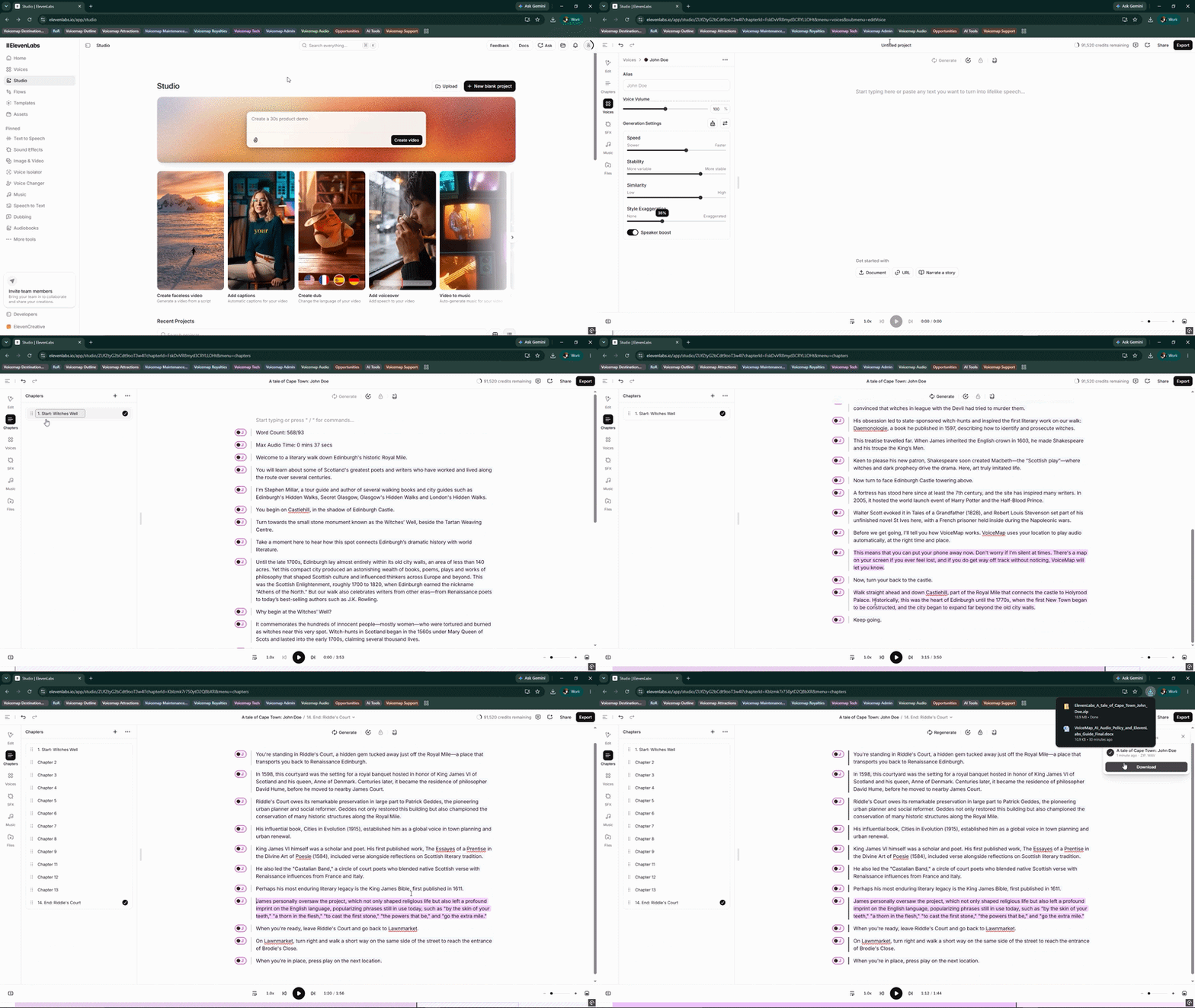 Creating a project in Studio
Step 3: Fix individual lines
If you only need to fix a single line, use ElevenLabs' Text to Speech tool rather than Studio. This is different from the Save with Text to Speech button in Mapmaker, which is only for testing.
- Open Text to Speech and select your voice.
- Paste in the line you want to fix and generate the audio.
- Download the file and splice it into your final edit.
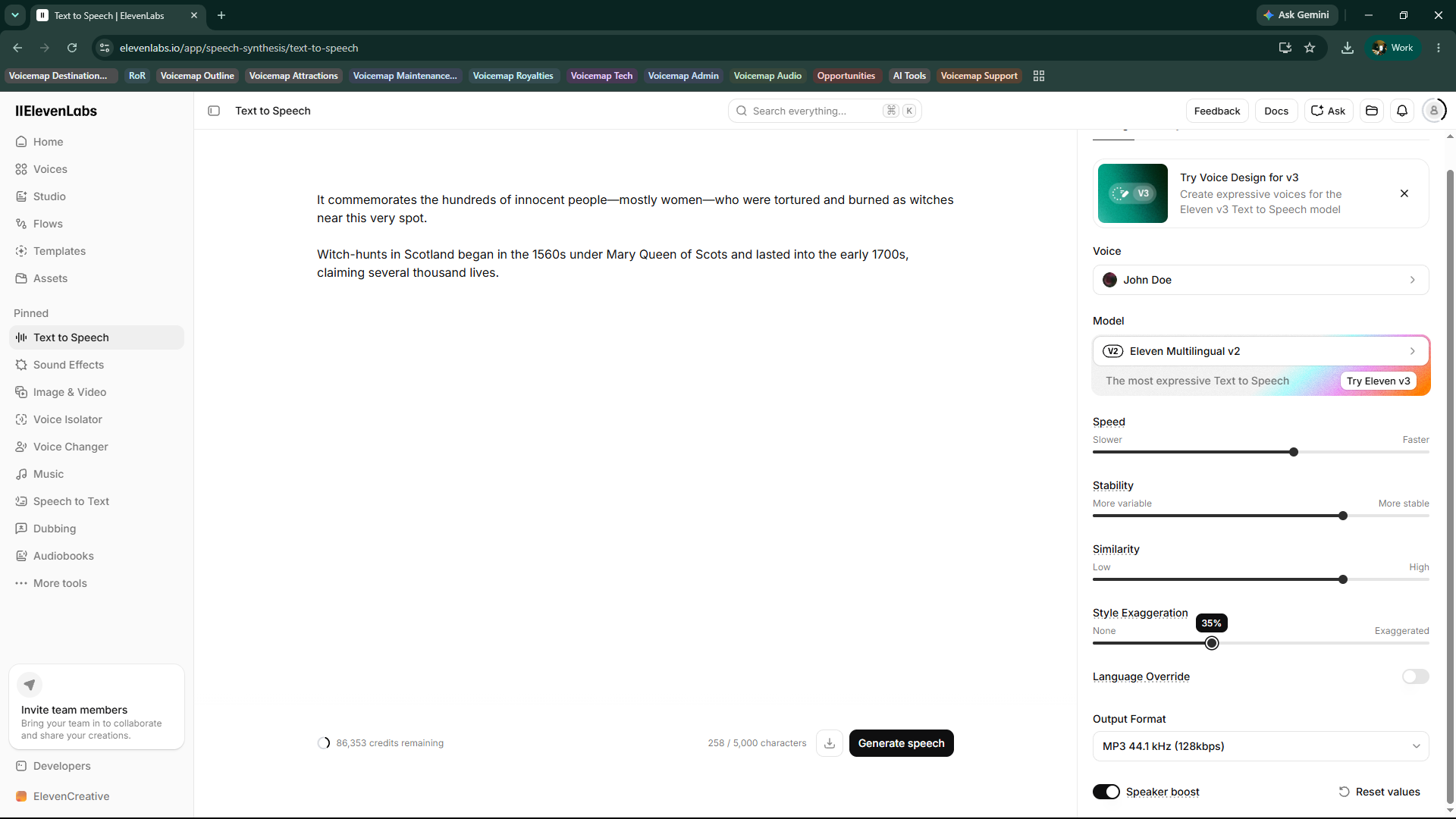 The Text to Speech screen with the voice, model and settings ready to generate
Quality control and voice selection
Not all AI voices are equal. A poor one sounds flat, with the stress on all the wrong words, and that's the difference between an immersive tour and one that's unlistenable.
If you are cloning your own voice or selecting an AI voice for your tour, the VoiceMap team must be involved in the sample approval process to ensure the best results for AI generation and cloning. Our goal is to help you achieve a warm, natural sound that keeps your listeners engaged and avoids any obvious AI quirks.
In our experience, cloning your own voice gives the most satisfying results, because something of your natural inflection carries through. If your tour is distributed privately rather than sold publicly, we can be more flexible about quality.
If you are cloning your own voice, keep these three tips in mind for the best results:
- Feed it a great sample: Your clone is only as good as the audio you upload. To get a clean, echo-free sample using just your smartphone, check out our guide on choosing the right environment and our forum post on improving in-app recordings (the blanket trick works wonders!).
- Remove background noise: When uploading your audio to the Instant Voice Clone page, make sure the Remove background noise from audio recordings box is checked so the system focuses purely on your voice.
- Turn on Speaker Boost: When configuring your voice settings in ElevenLabs to generate your tour, ensure Speaker Boost is turned on.